Saturday, July 31, 2010

CPU heat sink woes

Okay so here's the story of what happened to my CPU after I installed the new motherboard.

When you install a new motherboard you need to take the CPU off the old motherboard and put the CPU onto the new motherboard. This is a bit involved but not as difficult as dealing with the heatsink. The standard heatsink for the socket 775 series CPU is absolutely silly. Essentially, it's held on with some pushpins. It's a bit difficult to describe exactly how this works but basically you have two plastic flaps being held open with a sort of wedge. The wedge is on the head of this pin. The wedge is flattened so that as you twist the pin can wedge open the two plastic flaps or not as you wish.

I didn't know any of this when I started and the manual wasn't exactly helpful. After a while I managed to get the heatsink off but I would definitely suggest reading a handful of tutorials on the Internet on how to do it before you start. The way I did it was wrong. I actually twisted some of the pins in the wrong direction. They eventually turned but they weren't too happy about it. If you do it the right way it's much easier.

So anyway, I successfully got the heatsink off and transfered the CPU over to the new motherboard. There were no bent pins on the motherboard when I bought it. The guy at the computer shop was really eager to show me this. "You see" he said. "No bent pins". Mmm kay. I'm guessing that some motherboards have bent pins or some people bring motherboards back in with bent pins because they put too much pressure on the CPU when they installed it or something. I can definitely see how that could happen but if you're carefully following the instructions (which is actually well explained in the motherboard user manual at least in my case) you shouldn't screw anything up.

Once the CPU was on the new motherboard all that remained was to replace the heatsink. At this point I felt like a bit of a fool as I had completely forgotten about the thermal paste. You see, when you move a CPU like this you typically have to reapply the thermal paste (sometimes called thermal grease). In my case I didn't have any thermal paste. Nor did I have the isoproterenol you need in order to clean off the old thermal paste. Cunningly, I took advantage of both these situations and simply reused the existing paste. This was okay because it would still work, just not very well. Even if it didn't work Intel CPUs have little thermometers in them which stop you from damaging the CPU if they get too hot. It also stops them from bursting into flames if the heat sink falls off which is handy.


Intel CPUs (and modern AMD CPUs) do this by under clocking themselves until they cool down. So a 3Ghz chip might run at 1 Ghz or even lower if it gets too hot. The general rule is the higher the Mhz/Ghz the more heat is produced so lower Ghz means less heat. When this feature was introduced people accused Intel of crippling their CPUs because they would under clocked themselves when after you've installed them.. umm... wrongly... I still don't fully understand that attitude. I am quite thankful for this feature because I much prefer a slow CPU to a burning CPU.

When I got my system running I checked to see what the temperature on the CPU was. The temperature was about 75°C which is not that hot. Under load it went up to 80°C. These numbers didn't seem that high to me but I knew that different CPUs have different operating temperatures. Some Pentium 4 chips used to get very hot indeed. This being a Core 2 Duo (E6400) and not a Pentium 4 it might have a lower operating temperature. After some research it turned out that it was only supposed to run at 61°C maximum. Dang.

So I went down to the computer store and picked up some thermal grease and went to the drugstore and picked up some extremely pure isopropanol. I then took off my heat sink (with minimal swearing this time), used some cotton swabs and isopropanol to take off the old thermal paste and replaced it with the new thermal grease in the usual way. I then booted up my machine to check the temperature.

At idle the temperature was 65°C and under full load the temperature was 80°C. This annoyed me. I hadn't even finished overclocking the CPU. It was a 2.1 GHz CPU that I wanted to run at 3.2 GHz. I already knew that the chip could run at that speed just fine. My guess was that the thermal grease I installed was crap. The other possibility was that I had installed the heat sink slightly wrong... I made the decision that I wasn't going to reinstall the heat sink again as I was no longer on speaking terms with it. I wanted to run my system overclocked so I figured that I should get something better then the stock cooler anyway. With any luck it would be quieter and come with its own (better) thermal paste too.

I went down to the local computer shop and got an Arctic Freezer 7 ver 2. I did this because it had some good reviews on the web. It was also in stock at the local computer store. At only 35$ dollars it was a good deal too. Yeah, it included the thermal paste.

Installation was shockingly easy although I must confess that I had to read the instructions (Well, look at the instruction pictures really. There were no words.). I was also worried about over tightening the screws that held the heat sink onto the black, plastic mounting bracket. The 775 socket is made to take a lot of pressure but I didn't want to overdo it. I had visions of going back to the computer store. I'd have to get another replacement motherboard because I'd bent the pins! I couldn't even claim they were bent to begin with. :-)

In the end I installed the cooler, booted up and checked the temperature. Idle temperature was now 40°C. Temperature under full load was 60°C. Woohoo! What made it even nicer was that the fan wasn't even going at full speed like the old heat sink fan was. This meant I had some headroom to work with. It also meant I wasn't going to go deaf from the fan noise. Going deaf sucks. Especially if you don't want to.

I was very happy with all this and so tried overclocking it to the full 3.2 GHz. Idle temperature was still 40°C temperature and under full load it was still 60°C. I was very, very happy. I did notice something weird though. The the CPU seemed to be operating only at 2.4 GHz when the CPU was idle but when the CPU is under full load it was operating at 3.2 GHz. I'm guessing this has something to do with saving energy. If the CPU is not doing anything then there's no point in running it at the full 3.2 GHz. It just wastes energy. I'm still investigating exactly which feature that I inadvertently installed that is causing this to happen. When I find out I'll be sure to tell mention it.

Now all I had to do was get my second hard drive (with Windows XP) booting again.

Friday, July 30, 2010

Why the U2211-H panel?

Why did I get this relatively small 21.5 inch panel (note that I paid 219$ CAD not the 319 it is normally) instead of, say this much larger, comparably priced panel.

Doesn't go into portrait mode.. Doesn't have a display port.. is too big 4 me (24 inches yipes! 3 of those won't fit on my desk) and it's a TN panel..

from
http://www.pchardwarehelp.com/guides/lcd-panel-types.php


"TN (Twisted Nematic) panels are the most widely used panel type in the manufacture of LCD monitors. TN panels are cheap and offer excellent response times, making them perfect for fast paced gaming. The response times of current TN panels range from 2ms to 5ms. However, color reproduction, viewing angles and contrast ratios of TN panels are the worst of any current LCD panel technology. Unlike most 8-bit IPS/VA based panels, TN is only 6-bit and unable to display the full 16.7 million colors available in 24-bit true color. They can mimick the 16.7 million colors of 8-bit panels using a technique called dithering, but the results are unimpressive. TN panels have become popular with the average computer user because they are very inexpensive and currently dominate the LCD display market in availability."


The "ultra" panels from Dell are the latest generation of ISP panels:

"S-IPS/H-IPS (In Plane Switching) panels are generally considered the best overall LCD technology for image quality, color accuracy and viewing angles, but this comes at a price. They are well suited for graphics design and other applications which require accurate and consistent color reproduction. S-IPS panels offer the best viewing angles of any current LCD technology, with wide viewing angles up to 178 degress. The response time of S-IPS is adequate, ranging from 6ms to 16ms with current panels. This is only slightly slower than TN panels. However, gamers should take this into consideration. Fast paced games may suffer from motion blur or ghosting with S-IPS panels that have a response time higher than 8ms."


Wikipedia also has a good article on the topic of panel types:
https://secure.wikimedia.org/wikipedia/en/wiki/TFT_LCD

Wednesday, July 28, 2010

Dell monitor for cheap U2211H - 100$ off

Well, in the end I couldn't find a good 4:3 aspect ratio monitor at a price that made sense. Instead I got 3 U2211H monitors. Dell is selling them at a 100$ CAD discount each so that's not bad. They are full 1920x1080 monitors with tilt and swivel bases so you can use them in portrait mode. I'm not sure how long the 100$ deal lasts. Check it out:

<
http://accessories.dell.com/sna/products/Displays/productdetail.aspx?c=ca&l=en&cs=cadhs1&sku=320-9271>

Price with discount is
$219.00 CAD

Friday, July 23, 2010

My broken motherboard

I hate bad capacitors.

I got back from vacation, sat down at my computer, hit the "on" switch, all the fans would spin up but then nothing. The screens wouldn't turn on and I couldn't even get access to the BIOS. It was dead!

Don't you hate it when that happens? It could be almost anything. Before leaving on vacation I had added brand-new RAM. I figured it was worth tinkering with RAM to see if that was the problem. No, removing new RAM didn't help.

The next suspect was my power supply. I had already had a computer die in a similar fashion due to a funky power supply. What can happen is the power supply still provides power but doesn't provide it at the right voltage or at a steady voltage. If you stick a voltage meter onto the power supply you may get the right voltage displayed but as soon as you start to draw any amps you can get sudden voltage drops which cause the computer to crash. So I went out to my friendly, neighborhood computer store and got a new power supply. When I got home I hooked everything up turn it on and it still didn't work.

If it wasn't the power supply, the next logical thing would be the motherboard. This filled me with dread. While I often brag to my friends and colleagues that I had built my computers from scratch, in truth the man from the computer store had built it. All I had done was chosen the components. Changing the motherboard wasn't something I looked forward to. If I was going to do this, I might as well make damn sure that it was the motherboard that had died and not something else.

If you take a modern computer and remove everything from the motherboard you should still get a beep when you turn on. Well, you should still get a beep if you hadn't been stupid enough to remove the PC speaker when you'd removed everything else. I had arranged things so that this was impossible as I had never bought a PC speaker for the new PC in the first place. I had an old computer, however, which had a PC speaker. This was convenient. I plugged in the PC speaker (which is quite an adventure in old-school, giant pin array connectors) and turned on the computer to see if I could get it to beep. The PC didn't beep. This made me very unhappy and I decided to go onto the Internet to see if anyone had similar symptoms.

I found a note in one of the forums that someone had a similar issue with their machine and had left it off overnight and turned it on in the morning and it booted up. I also remembered that I had a similar issue with my Macintosh G4 computer and the problem had turned out to be a flat battery. I tried removing and re-setting the battery but that didn't help. So I left it for a few hours while I went out to collect some lunch and go talk to the man at the computer store about motherboard warranty replacements.

After lunch I was quite surprised when I turned on the machine and it beeped at me. After connecting a few more components and restarting the machine it beeped at me again although it sounded distinctly sick. Instead of a short, sharp beep it was just a long, droning tone. This isn't how a computer is supposed to sound when you start it up. I decided to leave it until the morning.

The next day I suspected that I would probably only get one good boot out of the machine, assuming I would do anything at all, so I decided to hook up as many components as I needed to use it and then try to boot. To my shock it actually worked and I managed to get into the BIOS and browser around BIOS menus. It then promptly crashed and all subsequent attempts to reboot it failed with the symptoms I had originally. I couldn't even get it to beep anymore with nothing connected. This was definitely a motherboard issue. A working motherboard should beep when you turn it on!

My old motherboard was a P5B Deluxe. It is super awesome when it's not broken and I wasn't looking forward to trying to find a replacement. Luckily, Asus was making a motherboard that is practically a drop-in replacement except that instead of using three and a half year old technology (older actually) it used state-of-the-art two year old technology. Well actually, this isn't fair. The motherboard uses components that are brand-new and the board was only released last fall. It just uses a design that's based on a chipset that's about two years old. It also works with just about every type of 775 socket CPU and DDR two RAM which is good because that's what I have.

The motherboard has the rather ridiculous name of P5Q Turbo Pro. There's something very interesting in the motherboard's description on the Asus website that might not jump out at you. Here's the list of features for motherboard:

  • ASUS 8-Phase Power Design
  • TurboV / Turbo Key
  • ASUS EPU
  • ASUS Drive Xpert
  • 100% All High-quality Conductive Polymer Capacitors! (VRM 5000hrs lifespan @105°C, 500,000hrs @65°C)

The important line there is the last one. "100% all high-quality conductive polymer capacitors!". Now, if you want to sell a motherboard to somebody you need to know what the important selling points are. Given that people's attention span is limited you can really only give the top five features of the motherboard before people lose interest. It's very telling that Asus has, as one of its five most important features, that it has "high-quality conductive polymer capacitors". The reason it's very important that this board has high-quality capacitors is because the board I have doesn't. That's the reason it broke. Probably....

It's been called the capacitor plague. Essentially, some Chinese company stole a secret formula for making capacitors from IBM. Unfortunately the formula wasn't finished. If you actually built a capacitor using this formula they would tend to fall apart after about three years. Since computer manufacturers generally don't care where they get capacitors from, or perhaps I should say they *didn't* use the care where they get capacitors from, just about every manufacturer had at least one batch of these bad capacitors in their products. This means that their products died after about three years. Add to this the fact that the standard industry warranty is three years and you have a big mess. Ask Dell.

Did I mention I hate bad capacitors that? Yeah, I'm pretty sure I have.

So anyway, my three and a half year old motherboard (out of warranty) was dead and I needed to get a new one. In the end I bought the Asus P5Q PRO Turbo. It works! My computer is back. I'm quite happy with it. It's essentially my old motherboard but better in lots of little ways. For example, it's more power efficient and faster. It's also not as expensive as the original motherboard. It turned out to be about 50% more expensive than the power supply. I didn't even need to reinstall Windows. How cool is that?

So that's the story of my motherboard. Maybe later I'll tell you the story of what happened to my CPU later that week.

Monday, June 21, 2010

Canadian unemployment rate

Annoyingly, the old Canadian economy site is gone. I was use it to keep track of what was happening with the unemployment rate. The responsibility appears to now fall to stats-can.

You can quickly find out what the unemployment rate is by going here:

http://www.statcan.gc.ca/subjects-sujets/labour-travail/lfs-epa/lfs-epa-eng.htm

You can even find out what the historical unemployment rate was and it's conveniently presented as a little graph.

I've also blogged about it a few times.

Monday, May 24, 2010

Facebook Privacy Roundup

If you're trying to follow what this whole facebook-privacy here's what's been going down.

The biggest story is that Facebook has been loosening the default privacy settings for all of the information it contains. Here's a nice visual history:

http://mattmckeon.com/facebook-privacy/

If you're worried about your privacy settings you can use this tool:

http://www.reclaimprivacy.org/

Or you can do it all manually. Facebook settings can be confusing to navigate so you can use these links to jump to all the different privacy panels in Facebook without having to hunt for them one at a time.


A second, unrelated issue is that Facebook is sharing who you are when you click on one of the advertisements that appear in Facebook.

I'm not too worried about advertisers, though because I'm more worried about the amount of information third party Facebook applications get. Even if you trust facebook with your data, do you trust every single facebook application maker?

Bizarrely, Facebook has threatened to sue a researcher that crawled through all the publicly available data on facebook as part of his research. Oh sure, you make the information public but they get annoyed when someone collects it. The researcher has made a map of how people connect to one another to see if there are groups of highly connected people in the US. It turns out there are. It's quite fascinating. It's a good thing he made his crawling public or else facebook would never have known they needed to sue him.

The CEO of Facebook has made some worrying statements about how he thinks that privacy is no longer a social norm. My blogging buddy Guillaume has detected this attitude in Facebook's options to turn off their instant personalization feature.

Then there's the instant personalization feature itself which "personalizes" other web sites with Facebook information. I'm not sure how much it's leaking because I haven't worked through all the security implications yet but it's creeping me out. :-)

Oh, Guillaume's just pointed out this link to me:
Facebook runs afoul of privacy watchdog again
Apparently Facebook's got into legal trouble in Canada over its behaviour... And the fun continues..

Three Monitors are Better Than One

Well, that'll teach me to procrastinate. Jeff Atwood has recently posted a blog posting that pretty much echoes everything I'm about to say. If you need more convincing then go check it out.

I'd like to talk to you today about computer monitors. The computer monitor is one of the most important things to consider when buying a computer. Most parts on a computer make the computer faster or able to load bigger programs but a computer screen actually goes beyond that. A computer screen actually dictates how you interact with your computer. If you have a very large screen you can see more information at the same time so there's less scrolling. If you've ever had a large, wide screen and work with spreadsheets you know how positively awesome this can be. It can also allow you to track multiple things at the same time. As a programmer I often have to have my editor, the program I'm working on and the log file that program all open at one time. Big screens let you get more work done.

With modern PCs and their modern graphics cards you can usually attach at least two monitors to your machine. Two monitors really are double the fun. What tends to happen is one of these screens becomes the main screen and the other becomes the auxiliary screen. Two screen can often be even better than 1 large screen because the two screens natural segment your workspace. You put your e-mail, tool palettes, log files, desktop widgets, Skype and all that sort of thing on a second monitor and keep the first one for working with. Two, monitors works great but you know what works better than two monitors? Three monitors.

Three monitors have recently become a real possibility thanks to the new series of ATI cards which all out you to attach three monitors. Here's the list that I know have three monitor output.

* Radeon 5670 (~$120)
* Radeon 5770 (~$180)
* Radeon 5830 (~$230)
* Radeon 5850 (~$310)
* Radeon 5870 (~$410)

I personally have the Radeon 5770. It has a respectable 3-D performance while drawing only moderate amounts of power and at a good price too. If you're only going for three monitors though you can use the cheapest since the cheapest card in a modern series will handily beat whatever graphics card you have when it comes to 3-D performance unless you're one of these guys who upgrades their video card every year.

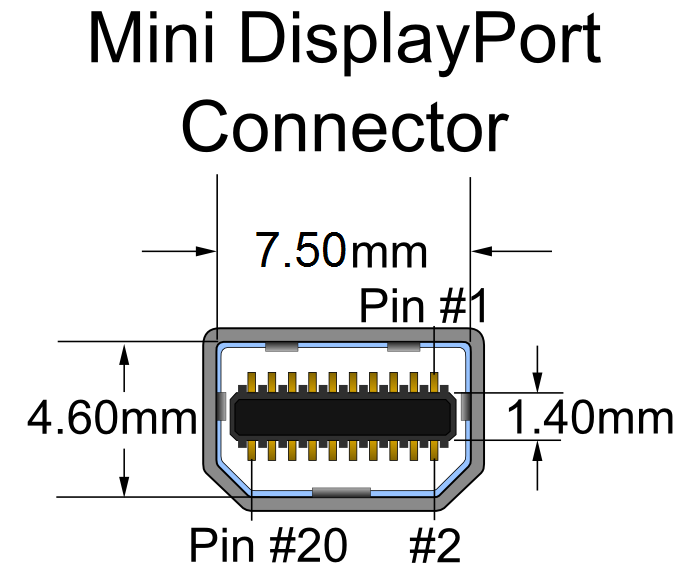
Currently I'm using three old 19 inch CRT screens with my card. The Radeon 5770 has two DVI outputs and one display port output. It also has an HDMI output but in order to use three screens you need to use the display port output. Since my old CRTs are all VGA I needed to get a few DVI converters. It was surprisingly easy because every video card I card I every motherboard I bought as come with a DVI to VGA converter. The display port is more of a problem. Display port seems to be more complicated than DVI and so converting between its VGA or DVI requires a pretty fancy converter. Even with one of these fancy converters it's not guaranteed to work. ATI has published a list of dongles that it knows work.

http://support.amd.com/us/eyefinity/Pages/eyefinity-dongles.aspx

I didn't know about that list at the time and bought an adapter by StarTech. It works in the sense that it will display a picture on third screen but it doesn't work in the sense that the picture will wobble about once a minute and every once in a while I'll have to unplug and re-plug adapter to get the video card to recognize it. It also won't drop into the special eyefinity gaming mode most of the time.

The CRTs are starting to get a bit old. No, scratch that the CRTs are very old and in desperate need of being replaced. I've been trying to find a monitor with a display port that I could buy three of. Annoyingly every manufacturer seems to be selling the exact same monitor in the exact same configurations. They are all 20 to 24 inch and come in wide screen format of 1980X1080 and 1600X900. The only exception is that there's a 24 inch screen with a resolution of 1980X1200.

I've never tried three widescreen displays. I would expect that it's probably a bit too wide. Three normal aspect ratio screens arranged horizontally work quite well because they fill in your peripheral vision. With three wide screens I suspect it would just be overkill. The only alternative is to get an older screen that doesn't have a display port on it and then get an expensive, hard to find adapter. This is what Jeff Atwood did. If I was to do this I already know which one I would get. It would probably be an UltraSharp 2007FP 20-inch. This is the kind of monitor I use at work where I have two of them. I have found them to be quite good. The high-resolution, small physical size and ability to set them up in portrait mode make them ideal for programming.

I think that most manufacturers have stopped designing new 4:3 aspect ratio monitors. They work very nicely in three monitor configurations but they also work very nicely in portrait mode too. As someone who works on long documents all the time viewing them in absolutely fantastic. Widescreen monitors used in portrait mode are, I suspect, a bit ridiculous.

Oh well, I'm going to actually go out and buy three monitors some point soon. One of my CRTs has just broken. If I leave it on too long the image would grow really large and turn purple. I've been keeping it turned off because at this point I'm scared it will catch fire or explode or something. Another monitor makes a buzzing noise whenever I display certain webpages. I'll be sure to tell you what I eventually bought and how it's worked out for me. Until then see you. Bye.